Teams Room User Guide
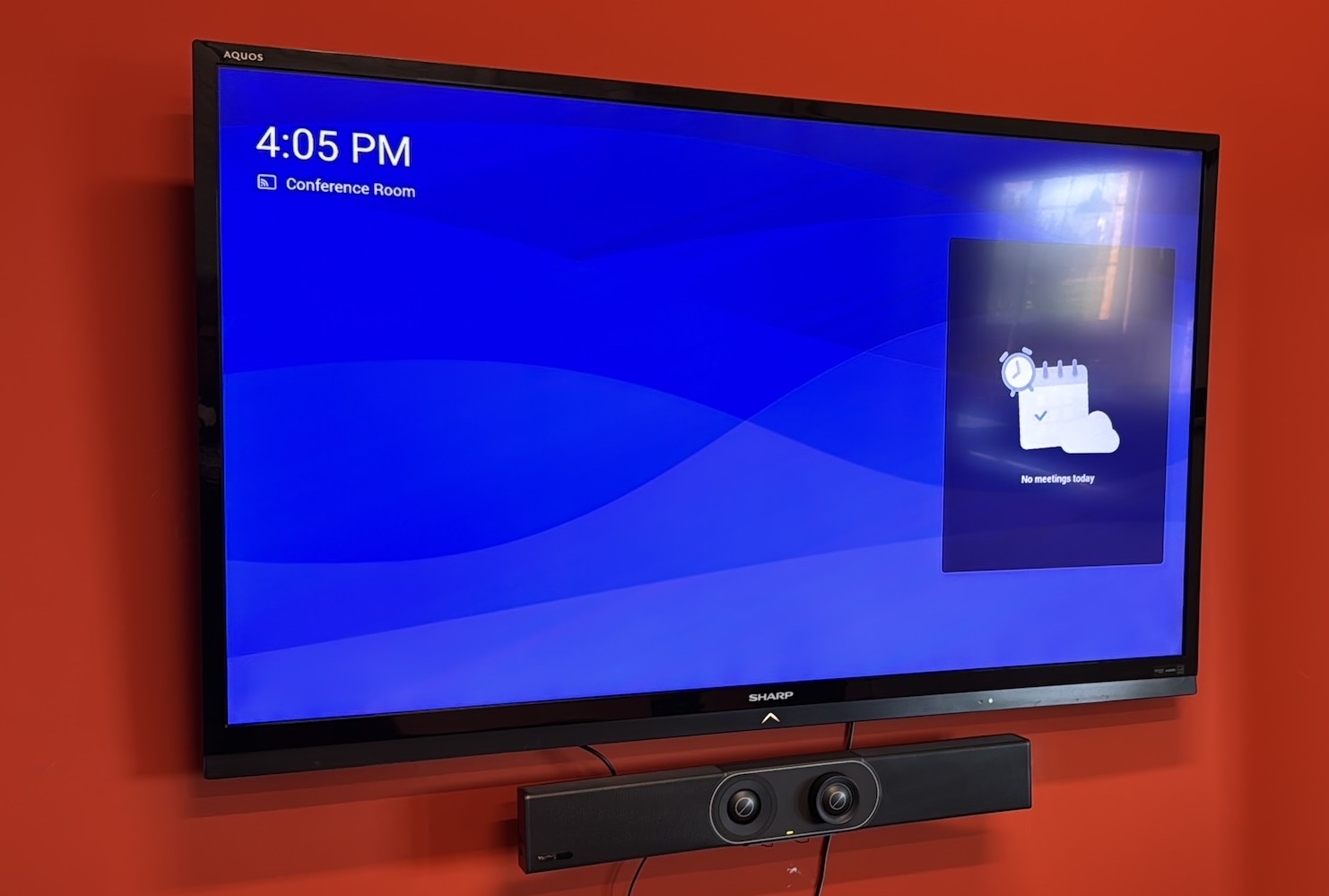
To improve the accessibility and ease-of-use for hybrid meetings, HOURCAR has installed a Microsoft Teams Room setup in the Conference Room at the 755 Prior Ave office. This system uses a Yealink A30 MeetingBar, an all-in-one camera, microphone, speaker, and computer, for easily hosting or joining a Teams meeting.
What's Installed
- Yealink A30 MeetingBar
- Yealink CTP18 Collaborative Touch Panel
- Conference room display
Quick Start Instructions
Joining a scheduled meeting
To join a scheduled meeting from the Teams Room, ensure that the Conference Room (conferenceroom@hourcar.onmicrosoft.com) has been invited to the meeting or is included as a location in the calendar invitation.
Invited meetings should be listed on both the main display, and the touch panel. To join, tap the meeting on the touch panel, then tap join.
Video and audio are automatically set for the best meeting experience, no adjustment is necessary.
Starting an Impromptu Meeting
If your meeting is not currently on the calendar, you can quickly begin one from the Touch Panel. Find the "Meet Now" button on the touch screen and invite any attendees by name or email. They will receive a call on their Teams application. An instant meeting guide is here.
Tips for a Good Meeting Experience
- Face the camera — The MeetingBar is mounted near the display. Remote attendees see a view of the whole table, so avoid sitting with your back to the camera.
- Seating matters for audio — The microphone picks up voices best closer to the MeetingBar. Seats furthest from the screen are not picked up as well, so consider seating quieter speakers closer to the display.
- Use a normal speaking volume — The microphone covers most of the table well. There is no need to raise your voice.
- Engage with remote attendees — Remember to interact with the camera, not just your in-room colleagues. Designating a communication lead for the meeting can help make sure remote participants are included.
Sharing Content
To share content from your laptop with other attendees, simply join the meeting from your computer and share your screen as you normally would.
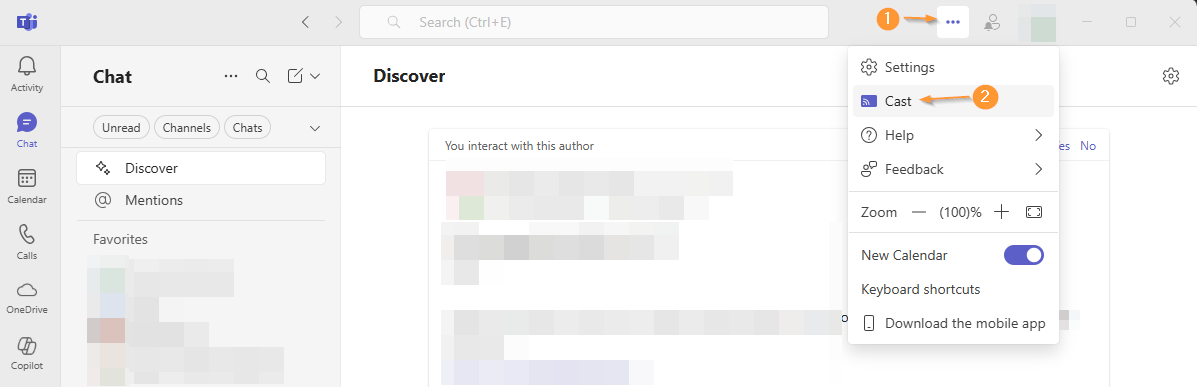
If you would like to use the display to share your screen in an in-person meeting, without starting a Teams Meeting, you can use the Teams "Cast" feature to share your screen.
Audio Recommendations for a Laptop
To prevent audio feedback loops, mute your laptop's microphone and speaker when joining the same meeting from your computer. Teams should prompt you with a "join with room audio" option — select this to use the MeetingBar's microphone and speaker instead of your laptop's.
Don't change the TV input!
To keep the Teams Room setup simple to use, please don't change the TV input or plug in other devices to this display. The TV should only be used for the Teams MeetingBar.
Additional Features
- Conference Room phone line — Attendees who are unable to connect over the internet can be given a phone number to dial in. The Teams Room can also be used as a conference phone if needed.
- Copilot meeting summaries — If a meeting transcript is enabled, an optional Copilot (AI) summary of the meeting can be generated.