Expired License Process
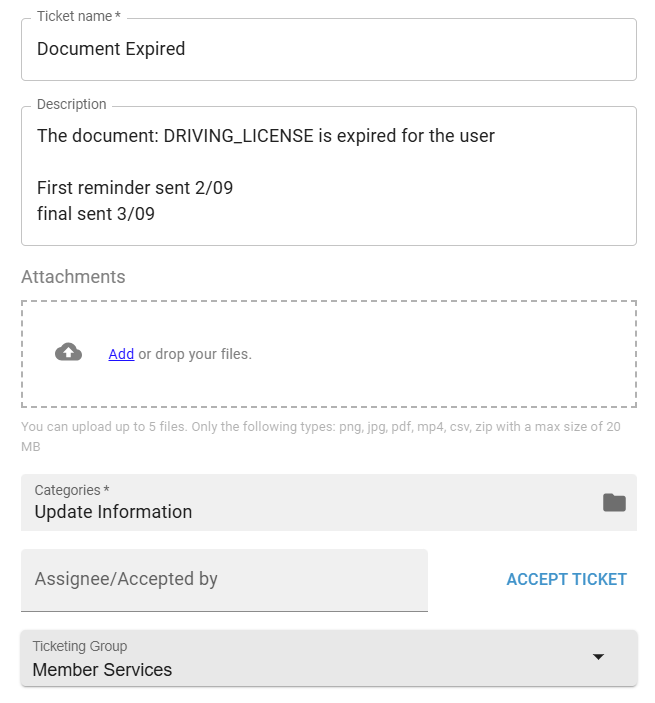
When a member’s driver’s license is about to expire, tickets are automatically generated to notify the member and us. First, a "Document Expiring Soon" ticket is generated 11 days before the expiration date on their license. Second, a "Document Expired" ticket, generates the day before their license is officially expired. When a member’s license is expired, they aren’t able to make or take any reservations until their information is updated. Both of these tickets send an automated email to the member as a reminder, but they’re the only automated emails about an expired license that go out. We’ve set up this process to:
-
Continue reminding members that their information needs to be updated in our system so they can be active members again
-
Provide a reminder that they’re able to reply to, since the automated emails are donotreply
-
Ensure the Document Expired tickets are up to date
-
Regularly check member accounts with Document Expired tickets on them to see if they’ve updated their information and their new document is pending
-
Possibly filter out some inactive members who may no longer need the service (which is the response these reminders occasionally receive)
Saving Ticket Descriptions
You must hit the “save” button when you edit a ticket title or description box, or your changes will not be saved when you exit out of the ticket.
Ticket Follow-up Procedure
New Document Expiring Soon tickets
-
Locate Document Expiring Soon tickets in NEW tickets
-
Batch select the tickets by selecting the checkbox on the ticket and select ‘Change of Status’ > RESOLVED to change the status on the selected group
- Since the member has already received an automated email that their license will expire soon but can still make reservations, we don’t need to manually send a follow up. Simply change the ticket status to RESOLVE.
New Document Expired tickets
This is the first manual follow up we perform, but members also receive an automatic reminder email from a donotreply address.
-
Go to Tickets and sort by the following filters:
-
Status: NEW
-
Categories: Member Follow Up Needed > Update Information
-
Group: Member Services
-
-
Go into the Infobox and open the Expired License templates under Hottest Template Action > Other Issues > Expired license
-
Open a New Document Expired ticket and scroll down to where it says User. Right click where it says “User Details,” then open link in new tab to pull up the member’s account page
-
If the ticket is attached to a former member or applicant that no longer has an active account, you can comment ‘closed’ and RESOLVE the ticket.
-
If you open the member’s account page and their documents aren’t showing up as invalid:
- they’ve either already updated their information and it’s been approved by staff (but they forgot to close the ticket), or
- the Document Expired ticket may have been about their Student ID card instead of their license and the ticket description text will read “The document IDENTIFICATION_CARD has expired”
- In this case, the ticket can be RESOLVED and you’ll need to update the expiration date of the document to x/x/2100
-
If the member’s license is expired and their account is active, copy the member’s email address into the Bcc field of the email template.
-
Add a note in the description box of each new Document Expired ticket that you sent the first follow up on today’s date and change the ticket status to PENDING. (Ex. Sent first follow up x/xx)
-
Once all relevant members have been included in the Bcc field, send the email.
Pending Document Expired Tickets
This is the second manual follow up we perform, sent one month after the first follow up.
-
Go to Tickets and sort by the following filters:
-
Status: PENDING
-
Categories: Member Follow Up Needed > Update Information
-
Group: Member Services Sort by “last updated” and look at the tickets that haven’t been updated for the longest time. If it’s been 30 days or more since the first reminder was sent, then they are due for a final reminder.
-
-
Go into the Infobox and find the Expired License templates under Hottest Template Action > Other Issues > Expired license.
-
Sort by “last updated” and look at the tickets that haven’t been updated for the longest time. If it’s been 30 days or more since the first reminder was sent, then they are due for a final reminder.
-
Open the oldest ticket and click on the member’s name to pull up the member’s account page in a new tab.
-
Verify that the license is not pending or already approved.
- If the license is pending, review the document, hit Verify, and RESOLVE the ticket
-
If the license is still expired, copy the member’s email address into the Bcc field.
-
Update the ticket heading and the description box with “Final reminder sent 00/00”
-
If it’s been 30 days or more since the first reminder was sent, send a final reminder from the templates, and RESOLVE the ticket.
-
Repeat on all tickets that have not received follow up in 30 days or more
-
Send email with all members BCC’ed